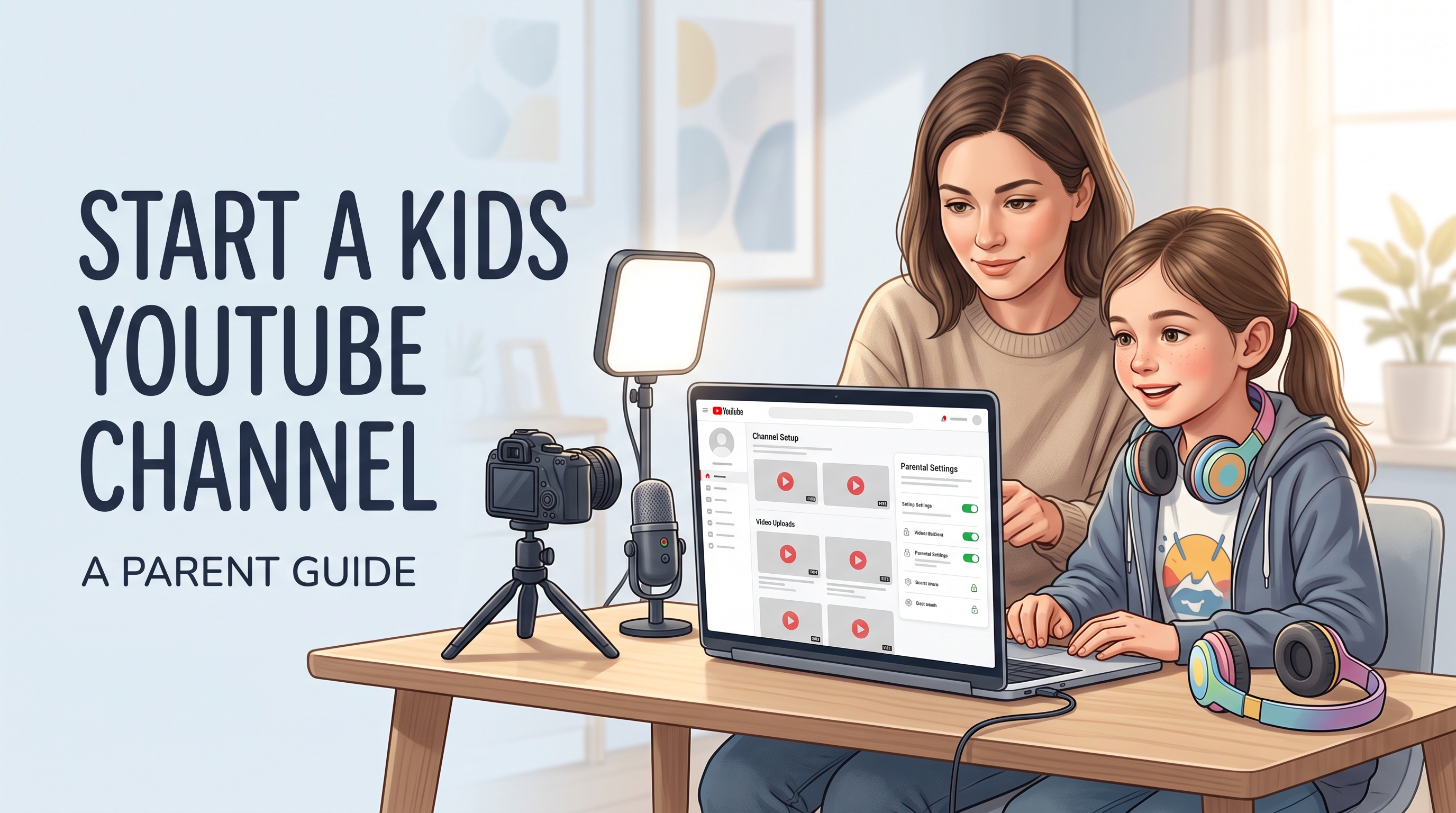
The safest setup puts an adult in charge of the Google Account, YouTube channel, uploads, privacy settings, and business decisions. A child can help choose ideas, perform, draw, narrate, or review the final video, but the parent should control the account and publishing process.
YouTube says a channel is required to upload videos, comment, or create playlists, and its channel-creation instructions include personal channels and Brand Accounts. YouTube also warns that a supervised experience may not allow channel creation.
For children under 13, or the relevant age in the country or region, YouTube offers supervised kid accounts for watching with parent-selected content settings. A supervised viewing account is not the same thing as a child independently running a public creator channel.
The channel also needs an accurate audience setting. YouTube requires creators to tell it whether content is “made for kids” under COPPA and other applicable laws, and it says content can qualify when children are the primary audience or when the video targets children through characters, games, songs, stories, activities, or similar subject matter.
This guide shows you how to create the channel, protect your child’s identity, choose content, set the audience, review uploads, and build a sustainable first month. It treats growth as a result of useful videos and consistent learning, not as a reason to expose more of your child’s life.
Who should own a YouTube channel for a child?
A parent or legal guardian should own and manage a channel that features a young child. The adult should create or manage the Google Account, protect the password, enable two-step verification, control uploads, review comments and messages, and decide whether a video should go public.
The child can participate without becoming the account administrator. That arrangement gives the child creative ownership of ideas while keeping legal, privacy, financial, and platform decisions with an adult.
Can a child under 13 create a YouTube channel?
Do not assume that a child under 13 can create or operate an independent channel. The relevant minimum age can vary by country or region, and YouTube’s supervised-account guidance describes supervised viewing for children under 13 or the applicable local age.
YouTube’s channel help also says a supervised experience may not allow channel creation. For a young child, create a parent-managed channel only after checking the current Google and YouTube rules for your country and account type.
If your family wants the child to watch videos rather than publish them, use the available supervised experience or YouTube Kids option instead of building a public channel around the child’s personal account.
Can a teenager start a YouTube channel?
A teenager may be able to use a regular Google Account depending on local age rules, but parents should still discuss privacy, comments, live streaming, sponsorships, copyright, and payments before the first upload.
Keep the adult involved in account recovery, security, brand deals, and monetization. A teen can gradually take on more production work without receiving unsupervised control over sensitive account and payment settings.
How do you create a YouTube channel for kids?
Create the channel from an adult-managed Google Account. YouTube’s current instructions say to select the profile picture, open Settings, go to Account, choose Add or manage channel(s), select Create a channel, choose a profile picture, enter a name and handle, and create the channel.
If you want a different public name from the adult’s Google Account, create a channel with a Brand Account or another name. YouTube says a channel connected to a Brand Account can have more than one manager or owner, but you should add only adults you trust.
Step 1: Create or choose the adult Google Account
Use an account that the parent can recover and secure. Add a recovery method, enable two-step verification, and do not let the child share the password with friends, collaborators, or viewers.
Create a separate creator identity if you do not want the channel attached to your personal email or family name. Avoid using the child’s full name as the account name, handle, or public contact address.
Step 2: Create the channel
Open YouTube while signed in to the adult account. Follow the channel-creation steps from YouTube Help, then choose a short name that describes the show without revealing the child’s identity, school, town, or daily routine.
A good name can describe the activity: “Saturday Science Lab,” “Tiny Paper Builds,” or “Family Puzzle Club.” These names establish a topic without publishing a child’s legal name.
Step 3: Add branding that reveals little
Use an illustration, mascot, object, or parent-created logo instead of a school uniform, house front, street sign, or close-up family photo. Make the banner readable on a phone and remove location clues from the background.
Write a channel description that explains the content category and upload rhythm. Do not list the child’s school, age, class, neighborhood, sports team, regular activities, or contact details.
Step 4: Set permissions and account access
Keep the adult as the owner. If another adult helps edit or upload, give that person only the access required for the job and remove access when the project ends.
Do not let an unknown agency, sponsor, viewer, or “manager” request the Google password. Use YouTube’s built-in roles or a secure file-sharing process instead of passing credentials through messages.
How do you keep a child’s YouTube channel private and safe?
Privacy starts before filming. Walk through the room with a phone camera and look for school papers, mail, house numbers, window views, uniforms, sports logos, medication labels, family calendars, and reflections in mirrors or screens.
Keep the child’s full name, birthday, school, address, commute, regular schedule, favorite local places, and live location out of the video, title, description, comments, and public business email.
Risk | Safer choice |
Full name in the channel title | Use a show name or topic-based brand |
School uniform or team clothing | Use neutral clothing without logos |
Home exterior or street view | Film against a controlled background |
Daily routine or regular route | Describe the activity without dates or locations |
Real-time filming | Upload later and remove time clues |
Personal email in the description | Use an adult-managed creator contact |
Live streams with a child | Avoid them until the adult can moderate in real time |
Viewer requests for personal details | Do not answer; block and report when needed |
Downloaded music or images | Use licensed or original assets |
Should a child’s face appear on YouTube?
You do not need to show a child’s face to build a successful channel. Hands, voice, animation, stop-motion, puppets, craft projects, toys, cooking demonstrations, science experiments, and screen recordings can carry the format.
If you show the child, decide in advance which shots are acceptable and which topics are off-limits. Let the child refuse a take, pause filming, or remove a published video without pressure.
Should kids appear in live streams?
Recorded videos give the adult time to edit names, locations, accidental disclosures, unsafe moments, and viewer-directed language. Live streams remove much of that review window and can expose a child to unpredictable interaction.
Avoid live streams for a young child unless the adult understands the current requirements and can moderate the entire session. A recorded format gives you more control over privacy and consent.
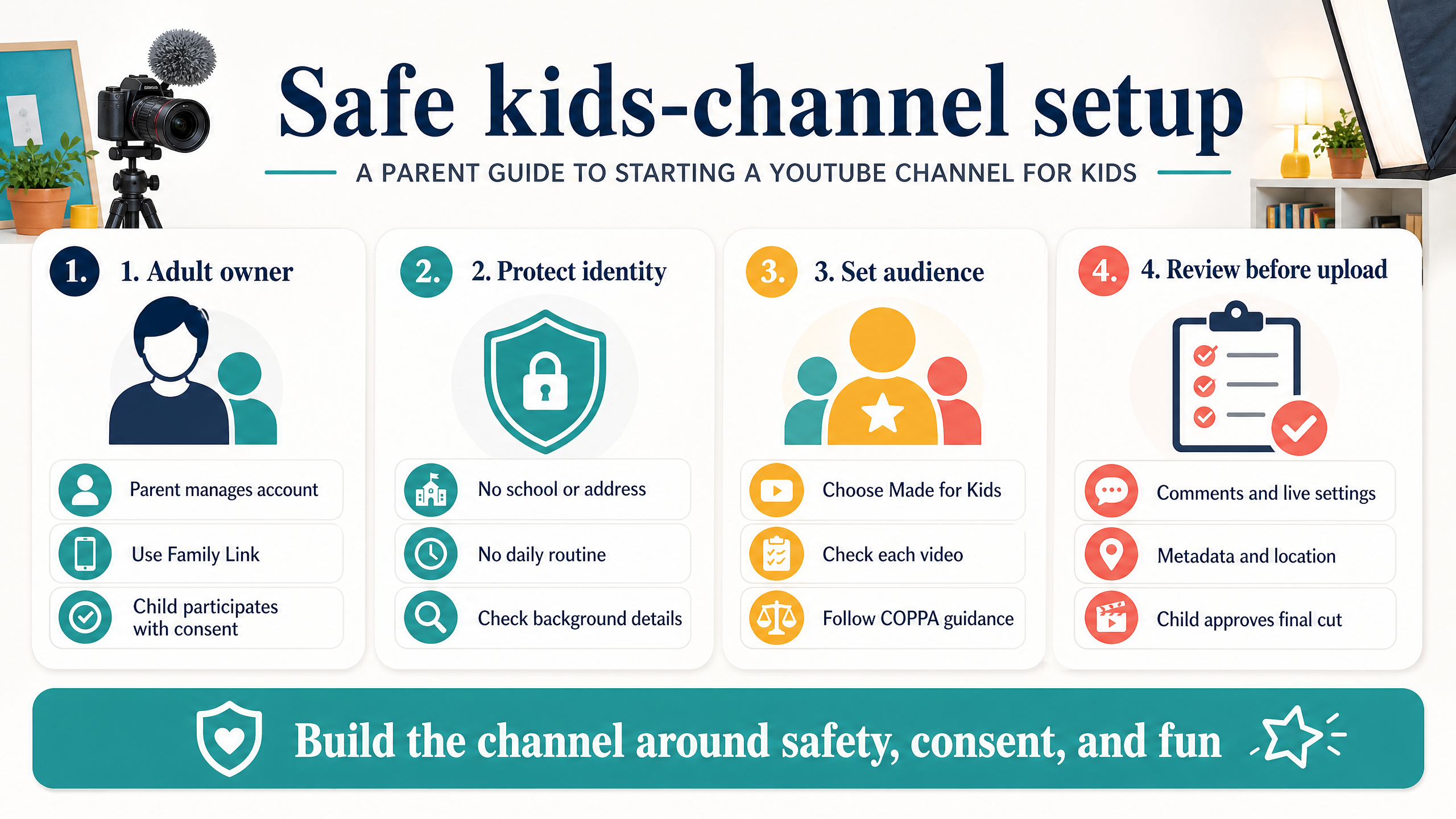
Review identity, audience, settings, and the final cut before publishing.
What does “Made for Kids” mean on YouTube?
“Made for Kids” describes the intended audience and the content’s direction, not just whether a child appears in the video. YouTube says creators must identify whether videos are made for kids under COPPA and other applicable laws.
YouTube lists children as the primary audience as one factor. It also says a video may be directed to children when it features actors, characters, activities, games, songs, stories, or other subject matter that reflects an intent to target children.
A family vlog is not automatically made for kids because a child appears in it. A cartoon teaching preschool colors is more likely to target children because of its format, subject, language, characters, and activity. Review each video honestly instead of choosing the setting that seems better for reach.
How do you set a channel as Made for Kids?
Open YouTube Studio and review the channel or video audience setting. YouTube provides channel-level and video-level audience controls, so choose a channel default only when it accurately describes most uploads. For mixed content, review each video individually.
YouTube says failing to set content appropriately can lead to consequences on YouTube or under applicable law. The help page also says it cannot provide legal advice, so consult qualified counsel if your content model creates uncertainty.
What changes when a video is Made for Kids?
Some features and personalized experiences can differ for Made for Kids content. Check YouTube’s current help documentation for the settings and feature effects that apply to your channel and region.
Do not mark content as Not Made for Kids to preserve a feature if the video clearly targets children. Correct audience classification protects the channel and gives YouTube the information it needs to handle the content.
What content should a kids YouTube channel make?
Choose a format that the family can produce without turning private life into the product. A repeatable activity works better than a vague promise to film “whatever happens today.”
Good starting formats include simple science experiments with adult supervision, drawing challenges, paper crafts, read-alouds where rights allow, puppet stories, beginner music practice, family-friendly game tutorials, stop-motion projects, and educational explainers.
Write a one-sentence format rule: “Each video shows one safe project a child can understand and a parent can review.” That rule helps you reject ideas that require risky locations, personal disclosures, dangerous stunts, or expensive purchases.
How do you plan the first five videos?
Create five videos that answer the same audience need from different angles. For a paper-craft channel, the first five might cover a simple animal, a moving card, a recycled-material build, a beginner mistake, and a timed challenge.
Video | Purpose | Safety check |
Introduction to the format | Show what viewers can expect | No personal biography or location details |
Beginner project | Give a quick win | Adult checks tools and materials |
Common mistake | Teach a useful correction | Remove unsafe or embarrassing footage |
Challenge or variation | Add a reason to return | No humiliating competition or risky time pressure |
Viewer-inspired idea | Build community safely | Use general suggestions, not private messages |
Avoid copying another child creator’s character, script, thumbnail, or catchphrase. Study the format, then build an original version that fits your family and audience.
Should parents write the scripts?
Parents should set the structure and safety boundaries, while children can choose language, examples, jokes, colors, or demonstrations. A short outline keeps the video focused without forcing a child to perform an adult-written personality.
Use three beats: show the goal, demonstrate the process, and reveal or explain the result. If the child loses interest, stop. A shorter video with a comfortable child is better than a longer video produced under pressure.
How should you film and edit the first video?
A phone, window light, stable support, and a quiet room can produce a useful first video. Do not buy a full camera setup before you learn whether the family enjoys the workflow.
Place the camera at the child’s eye level or frame the project from above. Record a short test and listen for traffic, appliances, music, and private conversations in the background.
Edit out names, school references, house views, accidental addresses, private family arguments, and any moment the child later wants removed. Watch the final cut with the child before uploading it.
Add captions when practical, but check automated captions for names and sensitive details. Use original music or properly licensed tracks. Keep a copy of the final file and the project files in an adult-managed storage location.
How do you publish a child-safe YouTube video?
Write a title that states the activity and result without naming the child or promising an unsafe outcome. “Easy Paper Rocket for Beginners” gives viewers useful context. “My Daughter’s Secret School Challenge” exposes personal information and uses a vague promise.
Use a thumbnail with the project, materials, or finished result. Avoid close-ups that reveal distress, embarrassment, private spaces, or identifying clothing.
Write a description that explains the activity, lists materials when useful, and includes only adult-managed contact information. Do not add a home address, school link, personal social account, or real-time schedule.
Before you click Publish, check the audience setting, visibility, thumbnail, title, description, subtitles, tags, links, comments, and background details. A parent should make the final publishing decision.
How do you grow a successful YouTube channel for kids?
A successful kids channel earns trust from families and gives children a clear reason to watch. Focus on useful, age-appropriate videos before chasing subscriber counts.
Choose one primary audience age range and content promise. A channel for preschool crafts needs different language, pacing, visuals, and adult expectations from a channel teaching coding to teenagers.
Publish on a schedule your family can sustain. One careful video every two weeks can teach you more than daily uploads that create stress and inconsistent quality.
Use YouTube Studio to review impressions, click-through rate, watch time, audience retention, traffic sources, and returning viewers. Change one major variable at a time so you can learn what affected the result.
Use a [free YouTube channel audit] placeholder from YT Crew to create a checklist for branding, titles, thumbnails, descriptions, and publishing consistency. Replace this placeholder with the live YT Crew URL before publication.
What should parents measure first?
Measure whether the child enjoys the process, whether viewers understand the video, and whether the channel reaches the intended audience. Revenue and subscriber totals should come later.
A useful first-month worksheet records the video topic, length, title, thumbnail idea, audience setting, upload date, impressions, click-through rate, average view duration, comments that require moderation, and the next experiment.
Can a kids YouTube channel make money?
A channel does not earn money just because it receives views. YouTube’s current YPP help lists requirements that include following monetization policies, living in an available region, having no active Community Guidelines strikes, enabling two-step verification, having advanced-features access, and linking an active AdSense for YouTube account.
The current help page lists one eligibility route as 1,000 subscribers and 4,000 qualified watch hours in the last 12 months, or another route as 1,000 subscribers and 10 million qualified Shorts views in the last 90 days. YouTube then reviews the channel, so hitting a threshold does not guarantee acceptance.
Parents should handle AdSense, contracts, sponsorships, invoices, taxes, and brand-safety decisions. Do not promise a child income before the family understands the legal and financial responsibilities in its jurisdiction.
A child’s safety and consent should remain more important than a sponsorship, a viral trend, or a deadline. If a brand asks for private information, unedited personal footage, or direct contact with the child, decline or route the communication through the adult.
A safe 30-day launch plan
Week 1: Define the format
Choose the audience age, topic, channel name, visual style, filming location, adult roles, privacy rules, and first five video ideas. Write down what the channel will not show.
Week 2: Produce two test videos
Film two short videos without publishing them. Review the audio, lighting, pacing, identity risks, child comfort, and editing time. Ask the child what they enjoyed and what they want to change.
Week 3: Publish one video and observe
Set the audience accurately, review the title and thumbnail, publish the first video, and monitor comments and settings. Do not reveal more personal information because the first video receives fewer views than expected.
Week 4: Improve one variable
Compare the first video with the second draft or the next upload. Change one element, such as the opening, title clarity, thumbnail composition, or project format. Keep the safety rules unchanged.
FAQ: starting a YouTube channel for kids
How do I create a new YouTube channel for my child?
Create and manage the channel from an adult Google Account. Follow YouTube’s channel-creation steps, choose a topic-based name, secure the account, and keep the child involved as a participant rather than the sole account administrator.
How do I create a YouTube page for kids?
YouTube calls the public creator presence a channel. Create the channel from an adult-managed account, then add a safe name, profile image, banner, description, and audience setting. Do not publish the child’s personal identity in the branding.
Can I create a YouTube channel for a kid under 13?
Do not create an independent child-managed account without checking the current age and supervised-account rules for your country. YouTube describes supervised accounts for children under 13 or the relevant local age, and it warns that supervised experiences may not allow channel creation.
How old do you have to be to start a YouTube channel?
The applicable age depends on the country or region and account setup. Check Google and YouTube’s current rules for your location. A parent should manage a young child’s channel, account security, publishing, and business decisions.
Should a child’s YouTube channel be set to Made for Kids?
Set the audience based on who the content targets and the factors in YouTube’s guidance, not only on whether a child appears on camera. Children as the primary audience, child-directed characters, games, songs, stories, and activities can indicate Made for Kids content.
Is YouTube Kids the same as a kids YouTube channel?
No. YouTube Kids is a viewing experience for children, while a public creator channel is where videos are uploaded and managed. A supervised kid account controls viewing access; it should not be treated as automatic permission for a child to operate a public channel.
How can I protect my child’s privacy on YouTube?
Keep the child’s full name, school, address, routine, location, uniform, personal email, and private family details out of the video and metadata. Review backgrounds, reflections, captions, comments, links, and thumbnails before publishing.
Should kids livestream on YouTube?
Recorded videos give parents more time to remove private information and review the final cut. Avoid livestreaming with a young child unless the adult understands the current platform requirements and can moderate the entire session.
Can a kids YouTube channel be monetized?
It may become eligible for YPP if the channel meets YouTube’s current requirements and passes review. The current help page lists subscriber and watch-time or Shorts-view thresholds, but YouTube does not guarantee acceptance after a channel reaches them.
What are good YouTube channel ideas for kids?
Choose repeatable, age-appropriate formats such as crafts, science demonstrations with adult supervision, drawing, puppets, original stories, music practice, educational explainers, and family-friendly game tutorials. Avoid formats that depend on revealing private life or humiliating the child.
How often should a kids YouTube channel upload?
Choose a schedule the family can sustain without pressuring the child. One careful upload every two weeks can provide a useful learning cycle while protecting school, rest, play, and family time.
Do I need expensive equipment to start?
No. A phone, stable support, good light, and clear audio can produce the first test videos. Improve equipment only after the family confirms that the format feels safe, enjoyable, and sustainable.
Conclusion: how to start a YouTube channel for kids safely
To start a YouTube channel for kids, put an adult in charge of the account, choose a topic-based identity, film in a controlled setting, remove identifying details, classify the audience accurately, and review every upload with the child before publishing. YouTube’s rules distinguish supervised viewing from channel creation, and its Made for Kids guidance requires an honest audience decision.
Build the channel around a repeatable activity rather than a child’s private life. Measure audience response in YouTube Studio, keep monetization expectations realistic, and let the child stop or change direction when the project no longer feels comfortable.
Your next step is to write five safe video ideas and run the first two as private test recordings. Then use YT Crew’s free YouTube creator tools to refine the topic, title, description, and thumbnail before you decide whether to publish.